


When working with large datasets in IronXL, choosing the right data-loading method can significantly impact performance. Below is a benchmark comparing three popular approaches to populating an Excel file using a 20,000-row by 55-column dataset.
Test Overview
All tests populate the same data set and write the result to disk as an .xlsx file. We recorded both the duration (in seconds) and the resulting file size.
| Method | Duration (sec) | File Size (KB) |
|---|---|---|
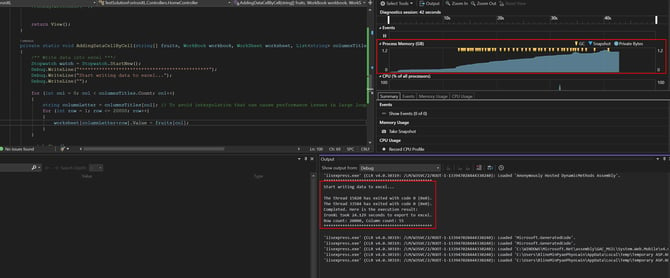
| Adding Data Cell by Cell | ~13 | 3094 |
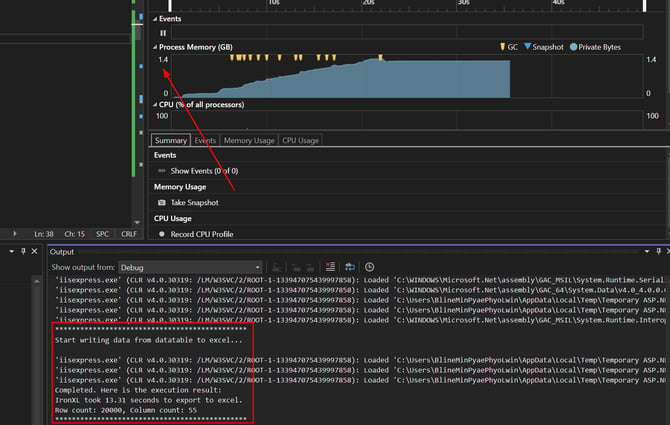
Loading from DataTable |
~3.4 | 3094 |
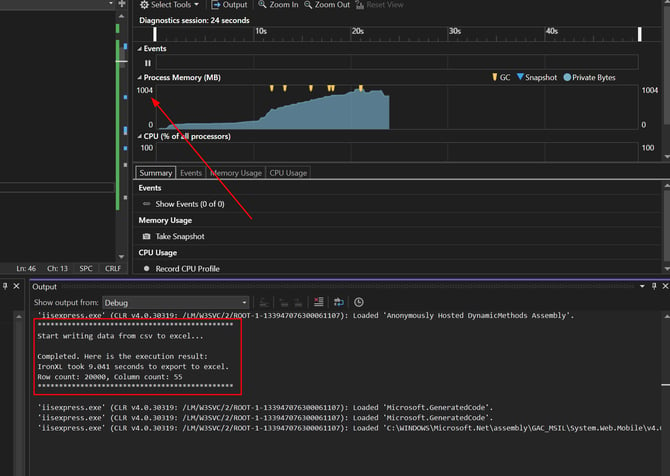
| Loading from CSV | ~4.1 | 3094 |
Summary of Each Method
1. Adding Data Cell by Cell
This approach manually assigns data to each individual cell using nested loops.
-
Performance: Slowest of the three
Code:
string[] fruits = { "Apples", "Apricot", "Banana", "Blackberry", "Blueberry", "Boysenberry", "Canary Melon", "Cantaloupe",
                        "Currants", "Dates (tree dried only) Dragon Fruit", "Durian (purchase cut) Figs", "Gooseberry", "Grapes", "Grapefruit",
                        "Lemon", "Lime", "Loganberry", "Longan", "Loquat", "Lychee", "Mandarin", "Mango",
                        "Blood Orange", "Papaya", "Passion Fruit", "Peach", "Pear", "Persimmon", "Pineapple", "Plum", "Honeydew",
                        "Rambutan", "Starfruit", "Tamarind", "Yuzu", "Açaí", "Abiu", "Ackee", "Breadfruit", "Cempedak",
                        "Cherimoya", "Buddha's Hand", "Citron", "Finger Lime", "Kumquat", "Pomelo", "Tangelo", "Ugli Fruit",
                        "Galia Melon", "Kiwano (Horned Melon)", "Mouse Melon", "Muskmelon",
                        "cherry", "nectarine", "Butternut squash"};

var workbook = WorkBook.Create(ExcelFileFormat.XLSX);
var worksheet = workbook.CreateWorkSheet("Fruits");

var columnsTitles = GetExcelCellLetters(fruits.Length);

for (int col = 0; col < columnsTitles.Count; col++)
{
    string columnLetter = columnsTitles[col]; // To avoid interpolation that can cause performance issues in large loops because it build string objects in every loop
    for (int row = 1; row <= 20000; row++)
    {
        worksheet[columnLetter + row].Value = fruits[col];
        //worksheet.Rows[row].Columns[columnLetter].Value.ToString();
    }
}

workbook.SaveAs("C:\\Temp\\ManualCell-by-CellAssignment.xlsx");

private static List<string> GetExcelCellLetters(int iMaxNum)
{
    string[] alphabet = { string.Empty, "A", "B", "C", "D", "E", "F", "G", "H", "I", "J", "K", "L", "M", "N", "O", "P", "Q", "R", "S", "T", "U", "V", "W", "X", "Y", "Z" };

    IEnumerable<string> lst = (from c1 in alphabet
                               from c2 in alphabet
                               from c3 in alphabet.Skip(1)
                               where c1 == string.Empty || c2 != string.Empty
                               select c1 + c2 + c3).Take(iMaxNum);
    return lst.ToList();
}
Result:
2. Loading from DataTable
One of the two fastest options. From v2026.10.1 it's as fast as CSV or faster, and much faster than manual cell insertion.
-
Performance: Significantly faster than manual cell insertion
Code:
string[] fruits = { "Apples", "Apricot", "Banana", "Blackberry", "Blueberry", "Boysenberry", "Canary Melon", "Cantaloupe",
                        "Currants", "Dates (tree dried only) Dragon Fruit", "Durian (purchase cut) Figs", "Gooseberry", "Grapes", "Grapefruit",
                        "Lemon", "Lime", "Loganberry", "Longan", "Loquat", "Lychee", "Mandarin", "Mango",
                        "Blood Orange", "Papaya", "Passion Fruit", "Peach", "Pear", "Persimmon", "Pineapple", "Plum", "Honeydew",
                        "Rambutan", "Starfruit", "Tamarind", "Yuzu", "Açaí", "Abiu", "Ackee", "Breadfruit", "Cempedak",
                        "Cherimoya", "Buddha's Hand", "Citron", "Finger Lime", "Kumquat", "Pomelo", "Tangelo", "Ugli Fruit",
                        "Galia Melon", "Kiwano (Horned Melon)", "Mouse Melon", "Muskmelon",
                        "cherry", "nectarine", "Butternut squash"};
var workbook = WorkBook.Create(ExcelFileFormat.XLSX);

DataTable table = new DataTable("Fruits");
foreach (string fruitName in fruits)
{
    table.Columns.Add(fruitName);
}
int rowCount = 20000;
for (int i = 0; i < rowCount; i++)
{
    table.Rows.Add(fruits);
}

workbook.LoadWorkSheet(table);

workbook.SaveAs("C:\\Temp\\LoadDataTableDirectly.xlsx");
Result:
3. Loading from CSV
One of the two fastest options, and the natural choice when your data is already flat and delimited.
-
Performance: Significantly faster than manual cell insertion
Code:
string[] fruits = { "Apples", "Apricot", "Banana", "Blackberry", "Blueberry", "Boysenberry", "Canary Melon", "Cantaloupe",
                        "Currants", "Dates (tree dried only) Dragon Fruit", "Durian (purchase cut) Figs", "Gooseberry", "Grapes", "Grapefruit",
                        "Lemon", "Lime", "Loganberry", "Longan", "Loquat", "Lychee", "Mandarin", "Mango",
                        "Blood Orange", "Papaya", "Passion Fruit", "Peach", "Pear", "Persimmon", "Pineapple", "Plum", "Honeydew",
                        "Rambutan", "Starfruit", "Tamarind", "Yuzu", "Açaí", "Abiu", "Ackee", "Breadfruit", "Cempedak",
                        "Cherimoya", "Buddha's Hand", "Citron", "Finger Lime", "Kumquat", "Pomelo", "Tangelo", "Ugli Fruit",
                        "Galia Melon", "Kiwano (Horned Melon)", "Mouse Melon", "Muskmelon",
                        "cherry", "nectarine", "Butternut squash"};


            var sb = new StringBuilder();

            // Step 1: Add header row
            sb.AppendLine(string.Join(",", fruits));

            // Step 2: Add 20,000 identical rows
            string rowData = string.Join(",", fruits); // same as headers
            for (int i = 1; i < 20000; i++)
            {
                sb.AppendLine(rowData);
            }

            File.WriteAllText("C:\\Temp\\csvfile.csv", sb.ToString(), Encoding.UTF8);

            var workbook = WorkBook.LoadCSV("C:\\Temp\\csvfile.csv");

            workbook.SaveAs("C:\\Temp\\LoadFromCSV.xlsx");
Result:
Conclusion
To maximize performance in IronXL when handling large datasets:
-
Use CSV when the source is already a flat, delimited file.
-
Use DataTable when the data is already in memory: from v2026.10.1 it's the fastest or joint-fastest option.
-
Avoid Cell-by-Cell writing unless you need per-cell logic or styling.
Each method writes the same file size, but the loading method dramatically affects how long it takes to generate the file.