


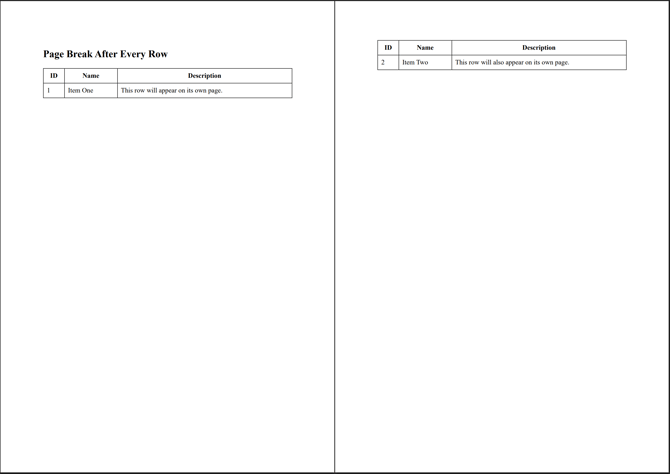
This example shows how to explicitly set a page break. In this case, a page break will be added after each table row <tr>.
<!DOCTYPE html>
<html>
<head>
    <meta charset="UTF-8" />
    <title>Page Break After Each Table Row</title>
    <style>
        table {
            width: 100%;
            border-collapse: collapse;
        }

        th, td {
            border: 1px solid #333;
            padding: 8px;
        }

        /* PRINT RULES */
        @media print {
            tr {
                page-break-after: always; /* legacy */
                break-after: page; /* modern */
            }

            thead tr {
                page-break-after: auto;
                break-after: auto;
            }
        }
    </style>
</head>
<body>

    <h2>Page Break After Every Row</h2>

    <table>
        <thead>
            <tr>
                <th>ID</th>
                <th>Name</th>
                <th>Description</th>
            </tr>
        </thead>

        <tbody>
            <tr>
                <td>1</td>
                <td>Item One</td>
                <td>This row will appear on its own page.</td>
            </tr>

            <tr>
                <td>2</td>
                <td>Item Two</td>
                <td>This row will also appear on its own page.</td>
            </tr>

            <tr>
                <td>3</td>
                <td>Item Three</td>
                <td>Every row starts a new page.</td>
            </tr>
        </tbody>
    </table>

</body>
</html>
This is the output of the above HTML.
If you want to avoid the break inside the row, please check below.
tr {
       page-break-inside: avoid; /* Prevent row from splitting */
       page-break-after: auto;
   }