


Overview
Some IronOCR methods accept a Rectangle so you can run OCR on one part of an image instead of the whole thing. This article shows you how to read the four values that Rectangle needs — x, y, width, and height — straight out of Microsoft Paint.
The constructor looks like this:
Rectangle(int x, int y, int width, int height, MeasurementUnits units = MeasurementUnits.Pixels)
Each value means:
| Parameter | Description |
|---|---|
x |
Distance from the left edge of the image to the start of your region |
y |
Distance from the top edge of the image to the start of your region |
width |
Width of the region you want to read |
height |
Height of the region you want to read |
MeasurementUnits.Pixels |
Tells IronOCR the values are in pixels |
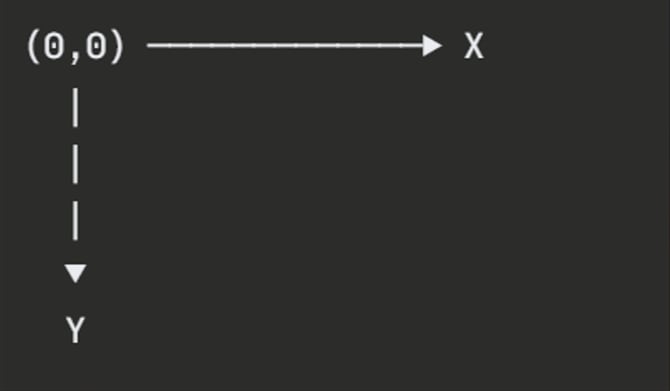
Coordinates start at the top-left corner of the image. x grows to the right, y grows downward:
Version Metadata
- Minimum Version: 2026.5.2
- Superseded-in Version: Unknown
Prerequisites
- Microsoft Paint (or any editor that shows the cursor position and selection size in pixels)
- The image you want to run OCR on
- IronOCR added to your project
Steps
- Open the image in Microsoft Paint.
- Move the cursor to the top-left corner of the region you want to read. This is your starting point. Read the cursor position from the bottom-left of the window. In the screenshot below it shows
2403, 1653px, so:X = 2403
Y = 1653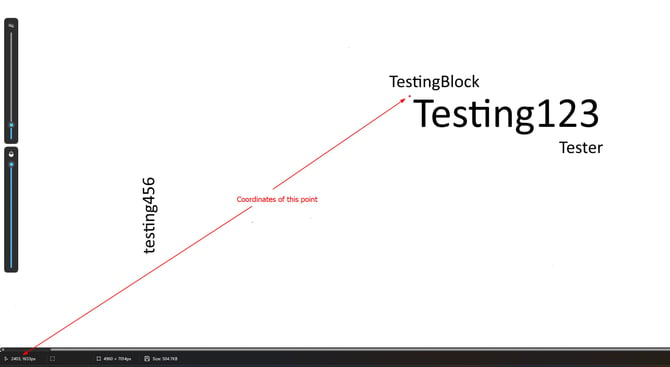
- Use the Select tool and drag a box over the target text. Paint shows the size of your selection in the bottom-left. In the screenshot below it shows
1031 × 214px, so:Width = 1031
Height = 214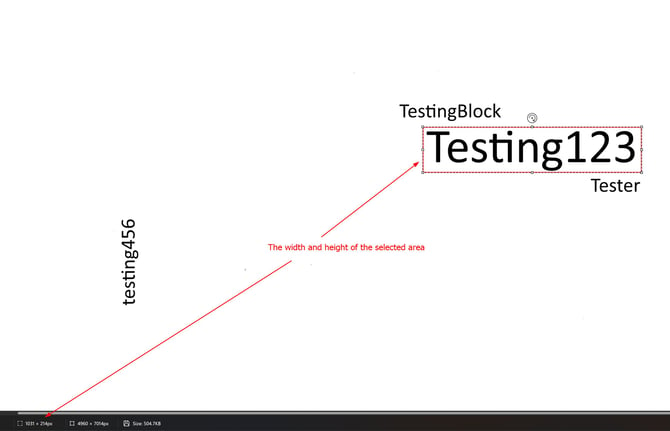
- Build the
Rectanglefrom the four values you just read. For theTesting123region above:var rectangle = new Rectangle(2403,1653,1031,214,MeasurementUnits.Pixels);
- Pass the rectangle to IronOCR to crop the image down to that region:
var rectangle = new Rectangle(2403,1653,1031,214,MeasurementUnits.Pixels);
ocrInput.LoadImage(frame, rectangle);
Notes and Limitations
- The
1031 × 214pxvalue in the status bar is the width and height of your selection. It is not a coordinate. - The
2403, 1653pxcursor readout is the X and Y starting point (the top-left of the region). - Do not use the full image size (here
4960 × 7014px) as the rectangle size. That selects the whole image, not your region. - Paint reports in pixels, so pass
MeasurementUnits.Pixelsto match. - You read these values by eye, so they can be off by a few pixels. If the crop clips part of the text, widen
widthorheightslightly, or lowerxory.